| ID |
Date |
Author |
Status |
Type |
Category |
Location |
Title |
|
2
|
Fri Oct 29 12:57:40 2021 |
Manar Amer | Fixed | report | vacuum | software | utilities | ThomX igloo | Valves of the mirror chambers |
Vacuum group: The electronics and air pressure to control the valves is connected to the control room.
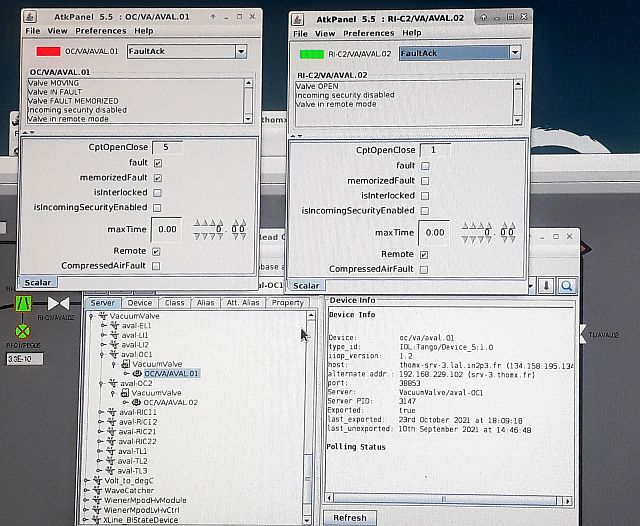
They can be opened using a software in the control room named "Jiva" (it controls all the components in ThomX)
steps to operate :
** Note: all related to optical cavity named "OC"
- open the software on the desktop named "Jiva"
- window opens where you will find Tabs named "server" and "device"
- "server" to search by type of connection, choose (Vacuum Valve) shows all valves, choose "AVAL.01" and "AVAL.02"
- or "device" to search by component, choose (OC)
- another window specifically for each connection is opened
- from options choose "open"
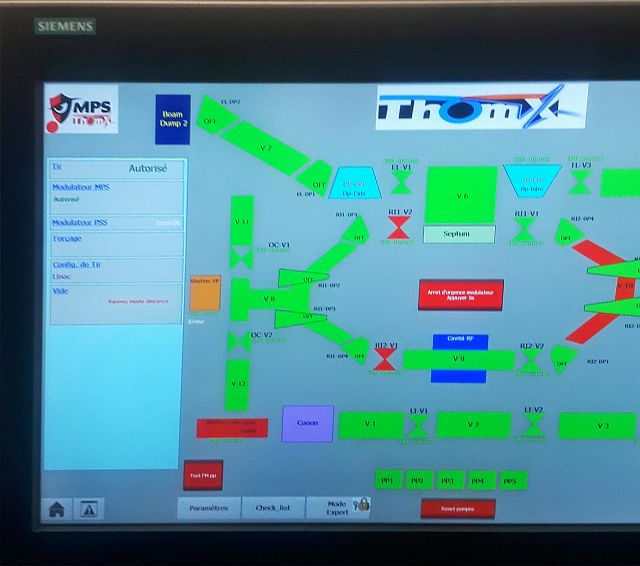
- Green (open) - orange (in transition state) - red (closed)
***** The valves are open but Bruno mentioned to maintain the pressure in the connection area between the chamber he closed it and when we start experiment we call him, and he will open it ************ |
| Attachment 1: Software_To_Control_ThomX_Devices.jpg
|
 |
| Attachment 2: Valves_are_open.jpg
|
 |
|
5
|
Mon Jun 19 17:38:47 2023 |
Manar Amer | Fixed | report | mechanics | lasers and optics | detectors and electronics | software | ThomX igloo | FP cavity Remote Control |
The control of ThomX Fabry Perrot cavity is done through the remote access of the PC placed inside the casemate using "Remote Desktop"
We can access each parameter using its own software:
Cavity Mirror Motors : ThomX software
Oscillator motors & CFP : SmarACT motors using Priecession Tool command (PTC)
Lase Lock : Kangoo software
power meter : gentec view
Oscilliscope : LabVIEW signal express
|
|
6
|
Tue Jun 20 12:32:29 2023 |
Ronic Chiche | Fixed | info | software | ThomX igloo | Remote control |
Description of the present remote control of the FP-cavity instruments:
- In the control room, one can access any thomX computer using this account:
login : operateur.thomx
pwd : thomX202
- once logged on the computer,
go to the "internet" section of the softwares
and launch the Remote Deskop Control software
look at the "1st window" image file to enter the remote control parameters
- once connected to the remote computer (192.168.229.29)
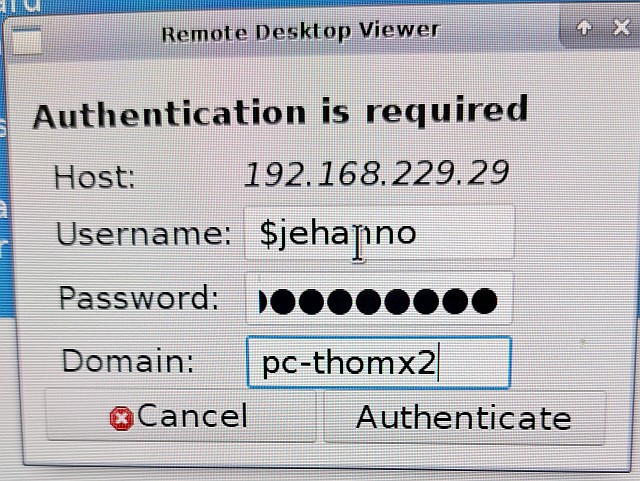
look at the "2nd window" image file to enter the account information:
login: $jehanno
pwd: ThomX2345
domain: pc-thomx2
- once logged to the remote computer,
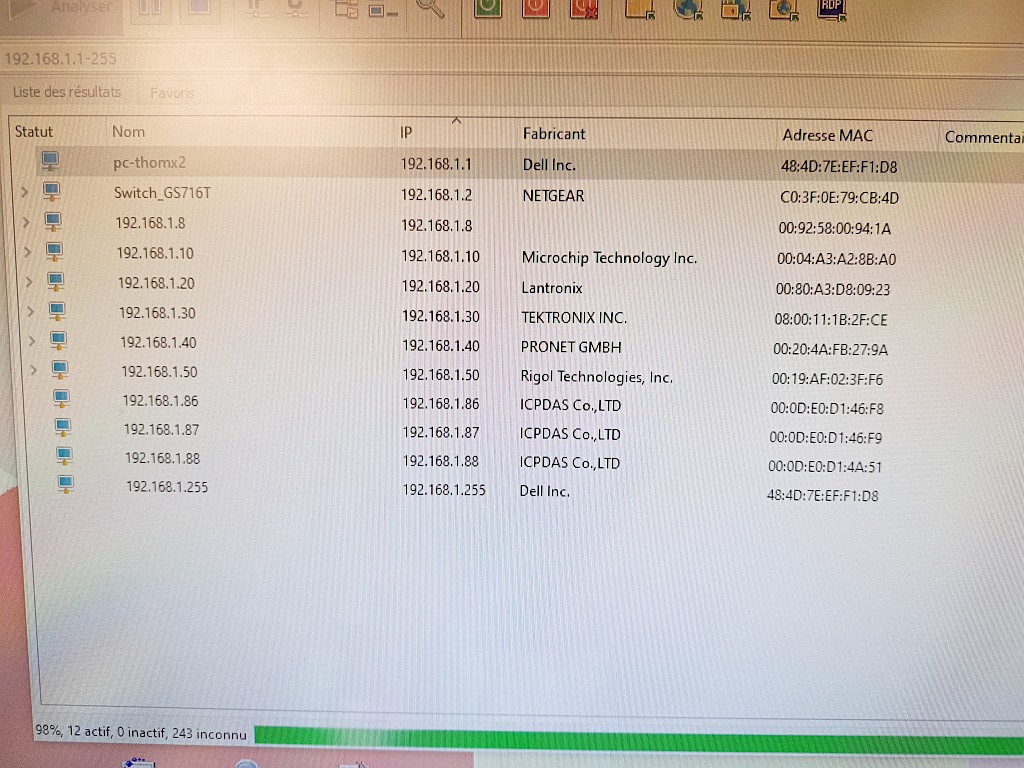
you can check the instruments connected to the local network : 192.168.1.1 - 255 by using the IP scanner on the desktop.
see the "instruments" image to have the full list of IP adresses:
192.168.1.1 : this computer has 2 ethernet cards, one on the ThomX network (192.168.229.29) and one the local instruments network (192.168.1.1)
192.168.1.2 : the Netgear ethernet switch (on which all instruments are connected) address, accessible by its web server on port 80 (pwd:password)
192.168.1.8 : the IP9258 power AC switch, accessible by its web server on port 80 (login: admin / pwd:12345678)
port 1 is connected to the Onefive Smaract motors (Frep and CEP)
port 2 is connected to the Laselock
192.168.1.10: Smaract motors controller, accessible by its dedicated Precision Tool Commander software directly on its ethernet address
192.168.1.20: Laselock controller, accessible by its dedicated Kangoo software on the virtual port COM 20
192.168.1.30: Tektronix DPO4054 oscillorscope, accessible by its dedicated labwindowsCVI Signal ExpressTektronix Edition software on its ethernet address
or by its web server on port 80
192.168.1.40: Gentec-EO power meter, accessible by its dedicated S-link software directly on the virtual port COM 13
192.168.1.50: Rigol DG4162 arbitrary waveform generator. no dedicated software up to now => to be done
192.168.1.86-87-88: FP-cavity motors controllers, accessible by their Jehanno "Chassis1-2" and "Chassis3" dedicated software directly on their ethernet address
|
| Attachment 1: 1st_window.jpg
|
 |
| Attachment 2: 2nd_window.jpg
|
 |
| Attachment 3: instruments.jpg
|
 |
|
7
|
Wed Jul 5 17:00:58 2023 |
Ronic Chiche | Fixed | info | software | ThomX igloo | Remote control |
2 remotely controlled elements have been added : both of them are connected to our ethernet switch
- 192.168.1.60 : Basler Camera, to be used and configured with the Pylon software
- 192.168.1.70 : Home-made Onefive laser peltier controller using an Arduino+ethernet shield. the software has been developped by Sebastien Pitrel from CC using Python + Arduino IDE
| Ronic Chiche wrote: |
|
Description of the present remote control of the FP-cavity instruments:
- In the control room, one can access any thomX computer using this account:
login : operateur.thomx
pwd : thomX202
- once logged on the computer,
go to the "internet" section of the softwares
and launch the Remote Deskop Control software
look at the "1st window" image file to enter the remote control parameters
- once connected to the remote computer (192.168.229.29)
look at the "2nd window" image file to enter the account information:
login: $jehanno
pwd: ThomX2345
domain: pc-thomx2
- once logged to the remote computer,
you can check the instruments connected to the local network : 192.168.1.1 - 255 by using the IP scanner on the desktop.
see the "instruments" image to have the full list of IP adresses:
192.168.1.1 : this computer has 2 ethernet cards, one on the ThomX network (192.168.229.29) and one the local instruments network (192.168.1.1)
192.168.1.2 : the Netgear ethernet switch (on which all instruments are connected) address, accessible by its web server on port 80 (pwd:password)
192.168.1.8 : the IP9258 power AC switch, accessible by its web server on port 80 (login: admin / pwd:12345678)
port 1 is connected to the Onefive Smaract motors (Frep and CEP)
port 2 is connected to the Laselock
192.168.1.10: Smaract motors controller, accessible by its dedicated Precision Tool Commander software directly on its ethernet address
192.168.1.20: Laselock controller, accessible by its dedicated Kangoo software on the virtual port COM 20
192.168.1.30: Tektronix DPO4054 oscillorscope, accessible by its dedicated labwindowsCVI Signal ExpressTektronix Edition software on its ethernet address
or by its web server on port 80
192.168.1.40: Gentec-EO power meter, accessible by its dedicated S-link software directly on the virtual port COM 13
192.168.1.50: Rigol DG4162 arbitrary waveform generator. no dedicated software up to now => to be done
192.168.1.86-87-88: FP-cavity motors controllers, accessible by their Jehanno "Chassis1-2" and "Chassis3" dedicated software directly on their ethernet address
|
|
|
8
|
Thu Sep 14 13:48:11 2023 |
Ronic Chiche | Fixed | info | software | ThomX igloo | Remote control |
- 192.168.1.90 : second Tektronix DPO4104 scope
- the IP9258 power AC switch, port 3 is connected to the Gentec-EO power meter power supply
| Ronic Chiche wrote: |
|
2 remotely controlled elements have been added : both of them are connected to our ethernet switch
- 192.168.1.60 : Basler Camera, to be used and configured with the Pylon software
- 192.168.1.70 : Home-made Onefive laser peltier controller using an Arduino+ethernet shield. the software has been developped by Sebastien Pitrel from CC using Python + Arduino IDE
| Ronic Chiche wrote: |
|
Description of the present remote control of the FP-cavity instruments:
- In the control room, one can access any thomX computer using this account:
login : operateur.thomx
pwd : thomX202
- once logged on the computer,
go to the "internet" section of the softwares
and launch the Remote Deskop Control software
look at the "1st window" image file to enter the remote control parameters
- once connected to the remote computer (192.168.229.29)
look at the "2nd window" image file to enter the account information:
login: $jehanno
pwd: ThomX2345
domain: pc-thomx2
- once logged to the remote computer,
you can check the instruments connected to the local network : 192.168.1.1 - 255 by using the IP scanner on the desktop.
see the "instruments" image to have the full list of IP adresses:
192.168.1.1 : this computer has 2 ethernet cards, one on the ThomX network (192.168.229.29) and one the local instruments network (192.168.1.1)
192.168.1.2 : the Netgear ethernet switch (on which all instruments are connected) address, accessible by its web server on port 80 (pwd:password)
192.168.1.8 : the IP9258 power AC switch, accessible by its web server on port 80 (login: admin / pwd:12345678)
port 1 is connected to the Onefive Smaract motors (Frep and CEP)
port 2 is connected to the Laselock
192.168.1.10: Smaract motors controller, accessible by its dedicated Precision Tool Commander software directly on its ethernet address
192.168.1.20: Laselock controller, accessible by its dedicated Kangoo software on the virtual port COM 20
192.168.1.30: Tektronix DPO4054 oscillorscope, accessible by its dedicated labwindowsCVI Signal ExpressTektronix Edition software on its ethernet address
or by its web server on port 80
192.168.1.40: Gentec-EO power meter, accessible by its dedicated S-link software directly on the virtual port COM 13
192.168.1.50: Rigol DG4162 arbitrary waveform generator. no dedicated software up to now => to be done
192.168.1.86-87-88: FP-cavity motors controllers, accessible by their Jehanno "Chassis1-2" and "Chassis3" dedicated software directly on their ethernet address
|
|
|
|
9
|
Thu Dec 12 18:10:56 2024 |
Ronic Chiche | Fixed | info | software | ThomX igloo | several software tools information |
- For placing the FLUO screen in the X-ray beam
use Jive -> Device -> XLI/OP/FLS.01 to launch the relative AtkPanel
click on "Inserted"
- For launching an X-ray trend of the photodiode placed after the FLUO screen :
use a Terminal Emulator and lauch the command :
taurustrend -r 100 /xli/op/tmd.01/i1 (no space between characters at the end of the command)
the baseline should be around 200-210pA
and the ratio is roughly 22 000 pA <=> 10^10 xray/s
- For moving the CFP table vertically
use Jive -> Device -> OC/OP/OTA.01 to launch the relative AtkPanel
the 03_Tz is the vertical motor.
BE CAREFUL !!! if you are out of the limits for this motor, you can break the bellows of the FP-cavity BE CAREFUL !!! => the safe range for this motor is +/- 3mm
at the end of the day, one has to put the motor OFF the avoid any risk of incorrect displacement.
- For scanning the CFP table vertically, you can use the Kevin Python script which moves the hexapod table slowly in order the FPC can follow the displacement without locking losses.
one needs first to launch the relative AtkPanel to follow the displacement.
then, the script is located in /data/shared/commissioning_scripts/Xray_CFP/scan_table => it launches the Spyder Python editor.
the variable "target_pos" is the vertical position (in mm) you want to reach with the 03_Tz motor of OTA.01
BE CAREFUL !!! if you are out of the limits for this motor, you can break the bellows of the FP-cavity BE CAREFUL !!! => the safe range for this motor is +/- 3mm
if one wants to plot the scan result at the end of the scan, one has to interrupt the script (ctrl-C) and copy/paste the #file saving part of the script in the command window and execute it.
=> it will plot the graph in the command window and save the .csv data in the directory:
/data/shared/Commissioning_tools/Mesure/ with the current date as subdirectory. |
|
10
|
Tue Feb 11 11:08:41 2025 |
Ronic Chiche | Fixed | info | software | ThomX igloo | MPS IP laser shutter command |
the IP laser shutter receive a permit from both the MPS and the PSS.
if the MPS permit is not granted (RED), one needs to check if the jive panel is not blocking it.
go to :
JIVE -> server -> PCLDO -> B17DO1 -> PLCDO -> ER/HF/RAC.17-API.DO1
double-click to open the ATK panel !!!
the panel shows several bits to command several devices.
one needs to check the box corresponding to the line "Cmd Shutter FP"
(be careful with the other line !!!)
then, the MPS permit should be granted (GREEN) |
|
11
|
Fri Feb 14 13:32:45 2025 |
Ronic Chiche | Fixed | info | software | ThomX igloo | Changing Icepap parameters |
in a command window : connect to CC client
ssh -XY kevin.dupraz@client-cc
pwd : thomx2022
from this client, use the command: /usr/local/icepapcms/icepapcms
it will launch the Icepap interface.
for Mot.03 (CFP_µVMP20_P4z) : locator icepap-B28 => icepap-B28 => CFP_µVMP20_P4z
for Mot.06 (CFP_µVMP20_P1z) : locator icepap-B17 => icepap-B6 => CFP_µVMP20_P1z
in the "Motor" tab, one can change the nominal current (presently 0.3A for P1z and 0.7A for P4z)
you need to click on "Send config to board" AND on "validate config" to validate your changes.
then motor is set to "OFF", you have to set it "ON" |
|
12
|
Mon Feb 17 11:55:12 2025 |
Ronic Chiche | Under Process | report | software | ThomX igloo | Possible automatisation process |
I found a way in Labview Signal Express to record some measurement values of a signals into a file :
"Ajouter un étape" => "charger/enregistrer des signaux" => "signaux analogiques" => "enregistrer au format ASCII/LVM"
and then, one selects any signal available (signals or defined measurements)
presently, the file embbed only the last mean measurement of the laser PZT.
this file could be used to share data with other tools which could be use to correct the motor position in the ATK panel as a first step for automatisation process.
for example, I wrote an Octave code which is able to display this mean value every seconds. |
|
13
|
Wed Feb 19 12:44:10 2025 |
Ronic Chiche | Fixed | issue | cabling | software | ThomX igloo | CEM issue impacting the communication with Smaract laser motors and Alphanov laser amplifier |
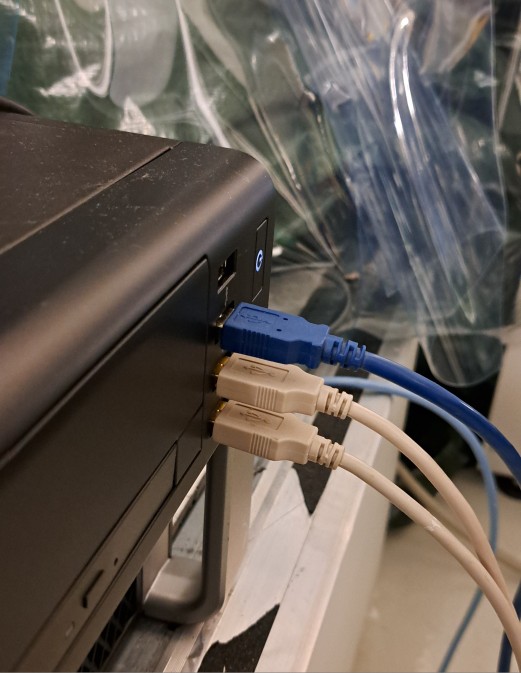
this morning, we saw that the injection kicker produces some CEM issues on all the machine and also on the USB communication with the PC.
in that case, one needs to reset the USB communication.
one can either restart the PC (which is quite long to restart all the softwares) or just unplug and replug the corresponding USB connector on the PC.
on the picture,
- the top USB (blue) cable is for the PicolLog temperature probe measurements.
- the middle USB cable is for the Smaract laser motor controller
- the bottom USB cable is for the Alphanov laser amplifier controller
|
| Attachment 1: img1.jpg
|
 |
|
14
|
Tue Mar 18 11:15:12 2025 |
Ronic Chiche | Fixed | info | software | ThomX igloo | several software tools information |
there are 2 news python scripts in /tmp_mnt/data/shared/commissioning/Common directrory:
- Read_Phase_Rigol_33MHz :
it reads both channels phase.
channel 1 is used for the ThomX synchronisation scheme of different devices.
channel 2 is used specifically for triggering the RF lock with the FP-cavity.
- Write_Phase_Rigol_33MHz :
first, it reads the channel 1 phase and then write the channel 2 phase with an offset (relatively to ch1) corresponding to the correct bucket.
| Ronic Chiche wrote: |
|
- For placing the FLUO screen in the X-ray beam
use Jive -> Device -> XLI/OP/FLS.01 to launch the relative AtkPanel
click on "Inserted"
- For launching an X-ray trend of the photodiode placed after the FLUO screen :
use a Terminal Emulator and lauch the command :
taurustrend -r 100 /xli/op/tmd.01/i1 (no space between characters at the end of the command)
the baseline should be around 200-210pA
and the ratio is roughly 22 000 pA <=> 10^10 xray/s
- For moving the CFP table vertically
use Jive -> Device -> OC/OP/OTA.01 to launch the relative AtkPanel
the 03_Tz is the vertical motor.
BE CAREFUL !!! if you are out of the limits for this motor, you can break the bellows of the FP-cavity BE CAREFUL !!! => the safe range for this motor is +/- 3mm
at the end of the day, one has to put the motor OFF the avoid any risk of incorrect displacement.
- For scanning the CFP table vertically, you can use the Kevin Python script which moves the hexapod table slowly in order the FPC can follow the displacement without locking losses.
one needs first to launch the relative AtkPanel to follow the displacement.
then, the script is located in /data/shared/commissioning_scripts/Xray_CFP/scan_table => it launches the Spyder Python editor.
the variable "target_pos" is the vertical position (in mm) you want to reach with the 03_Tz motor of OTA.01
BE CAREFUL !!! if you are out of the limits for this motor, you can break the bellows of the FP-cavity BE CAREFUL !!! => the safe range for this motor is +/- 3mm
if one wants to plot the scan result at the end of the scan, one has to interrupt the script (ctrl-C) and copy/paste the #file saving part of the script in the command window and execute it.
=> it will plot the graph in the command window and save the .csv data in the directory:
/data/shared/Commissioning_tools/Mesure/ with the current date as subdirectory.
|
|
|
15
|
Thu Mar 20 11:12:43 2025 |
Ronic Chiche | Fixed | info | software | ThomX igloo | several software tools information |
Atk panel for changing the phase of the CFP / 500MHz RF frequencies is in :
Jive => "devices" => ER/CA/RAC.05-API.A01 => Phase CFP 500MHz
Atk panel for reading the pico-ampermeter i1-i4 :
Jive => "devices" => XLI/OP/TMD.01 => ITM to change the integration time when the pico-ampermeter is saturated.
Atk panel for following the rotation of the tomographic table:
Jive => "devices" => XLH/OP/OTA.01-RTomo => Position gives the present rotation angle.
| Ronic Chiche wrote: |
|
there are 2 news python scripts in /tmp_mnt/data/shared/commissioning/Common directrory:
- Read_Phase_Rigol_33MHz :
it reads both channels phase.
channel 1 is used for the ThomX synchronisation scheme of different devices.
channel 2 is used specifically for triggering the RF lock with the FP-cavity.
- Write_Phase_Rigol_33MHz :
first, it reads the channel 1 phase and then write the channel 2 phase with an offset (relatively to ch1) corresponding to the correct bucket.
| Ronic Chiche wrote: |
|
- For placing the FLUO screen in the X-ray beam
use Jive -> Device -> XLI/OP/FLS.01 to launch the relative AtkPanel
click on "Inserted"
- For launching an X-ray trend of the photodiode placed after the FLUO screen :
use a Terminal Emulator and lauch the command :
taurustrend -r 100 /xli/op/tmd.01/i1 (no space between characters at the end of the command)
the baseline should be around 200-210pA
and the ratio is roughly 22 000 pA <=> 10^10 xray/s
- For moving the CFP table vertically
use Jive -> Device -> OC/OP/OTA.01 to launch the relative AtkPanel
the 03_Tz is the vertical motor.
BE CAREFUL !!! if you are out of the limits for this motor, you can break the bellows of the FP-cavity BE CAREFUL !!! => the safe range for this motor is +/- 3mm
at the end of the day, one has to put the motor OFF the avoid any risk of incorrect displacement.
- For scanning the CFP table vertically, you can use the Kevin Python script which moves the hexapod table slowly in order the FPC can follow the displacement without locking losses.
one needs first to launch the relative AtkPanel to follow the displacement.
then, the script is located in /data/shared/commissioning_scripts/Xray_CFP/scan_table => it launches the Spyder Python editor.
the variable "target_pos" is the vertical position (in mm) you want to reach with the 03_Tz motor of OTA.01
BE CAREFUL !!! if you are out of the limits for this motor, you can break the bellows of the FP-cavity BE CAREFUL !!! => the safe range for this motor is +/- 3mm
if one wants to plot the scan result at the end of the scan, one has to interrupt the script (ctrl-C) and copy/paste the #file saving part of the script in the command window and execute it.
=> it will plot the graph in the command window and save the .csv data in the directory:
/data/shared/Commissioning_tools/Mesure/ with the current date as subdirectory.
|
|
|
|
16
|
Wed Apr 2 14:41:49 2025 |
Ronic Chiche | Fixed | info | software | ThomX igloo | Remote control |
- 192.168.1.101 : power supply for the amplifier of the 500MHz beating => MANDATORY to use the proprietary software EasyPower (icon on the office) to remotely control the power supply.
| Ronic Chiche wrote: |
|
- 192.168.1.90 : second Tektronix DPO4104 scope
- the IP9258 power AC switch, port 3 is connected to the Gentec-EO power meter power supply
| Ronic Chiche wrote: |
|
2 remotely controlled elements have been added : both of them are connected to our ethernet switch
- 192.168.1.60 : Basler Camera, to be used and configured with the Pylon software
- 192.168.1.70 : Home-made Onefive laser peltier controller using an Arduino+ethernet shield. the software has been developped by Sebastien Pitrel from CC using Python + Arduino IDE
| Ronic Chiche wrote: |
|
Description of the present remote control of the FP-cavity instruments:
- In the control room, one can access any thomX computer using this account:
login : operateur.thomx
pwd : thomX202
- once logged on the computer,
go to the "internet" section of the softwares
and launch the Remote Deskop Control software
look at the "1st window" image file to enter the remote control parameters
- once connected to the remote computer (192.168.229.29)
look at the "2nd window" image file to enter the account information:
login: $jehanno
pwd: ThomX2345
domain: pc-thomx2
- once logged to the remote computer,
you can check the instruments connected to the local network : 192.168.1.1 - 255 by using the IP scanner on the desktop.
see the "instruments" image to have the full list of IP adresses:
192.168.1.1 : this computer has 2 ethernet cards, one on the ThomX network (192.168.229.29) and one the local instruments network (192.168.1.1)
192.168.1.2 : the Netgear ethernet switch (on which all instruments are connected) address, accessible by its web server on port 80 (pwd:password)
192.168.1.8 : the IP9258 power AC switch, accessible by its web server on port 80 (login: admin / pwd:12345678)
port 1 is connected to the Onefive Smaract motors (Frep and CEP)
port 2 is connected to the Laselock
192.168.1.10: Smaract motors controller, accessible by its dedicated Precision Tool Commander software directly on its ethernet address
192.168.1.20: Laselock controller, accessible by its dedicated Kangoo software on the virtual port COM 20
192.168.1.30: Tektronix DPO4054 oscillorscope, accessible by its dedicated labwindowsCVI Signal ExpressTektronix Edition software on its ethernet address
or by its web server on port 80
192.168.1.40: Gentec-EO power meter, accessible by its dedicated S-link software directly on the virtual port COM 13
192.168.1.50: Rigol DG4162 arbitrary waveform generator. no dedicated software up to now => to be done
192.168.1.86-87-88: FP-cavity motors controllers, accessible by their Jehanno "Chassis1-2" and "Chassis3" dedicated software directly on their ethernet address
|
|
|
|
|
17
|
Fri May 23 13:07:01 2025 |
Ronic Chiche | Fixed | info | software | ThomX igloo | Remote control |
New password:
once connected to the remote computer (192.168.229.29)
look at the "2nd window" image file to enter the account information:
login: $jehanno
pwd: ThomX23456
domain: pc-thomx2
| Ronic Chiche wrote: |
|
Description of the present remote control of the FP-cavity instruments:
- In the control room, one can access any thomX computer using this account:
login : operateur.thomx
pwd : thomX202
- once logged on the computer,
go to the "internet" section of the softwares
and launch the Remote Deskop Control software
look at the "1st window" image file to enter the remote control parameters
- once connected to the remote computer (192.168.229.29)
look at the "2nd window" image file to enter the account information:
login: $jehanno
pwd: ThomX2345
domain: pc-thomx2
- once logged to the remote computer,
you can check the instruments connected to the local network : 192.168.1.1 - 255 by using the IP scanner on the desktop.
see the "instruments" image to have the full list of IP adresses:
192.168.1.1 : this computer has 2 ethernet cards, one on the ThomX network (192.168.229.29) and one the local instruments network (192.168.1.1)
192.168.1.2 : the Netgear ethernet switch (on which all instruments are connected) address, accessible by its web server on port 80 (pwd:password)
192.168.1.8 : the IP9258 power AC switch, accessible by its web server on port 80 (login: admin / pwd:12345678)
port 1 is connected to the Onefive Smaract motors (Frep and CEP)
port 2 is connected to the Laselock
192.168.1.10: Smaract motors controller, accessible by its dedicated Precision Tool Commander software directly on its ethernet address
192.168.1.20: Laselock controller, accessible by its dedicated Kangoo software on the virtual port COM 20
192.168.1.30: Tektronix DPO4054 oscillorscope, accessible by its dedicated labwindowsCVI Signal ExpressTektronix Edition software on its ethernet address
or by its web server on port 80
192.168.1.40: Gentec-EO power meter, accessible by its dedicated S-link software directly on the virtual port COM 13
192.168.1.50: Rigol DG4162 arbitrary waveform generator. no dedicated software up to now => to be done
192.168.1.86-87-88: FP-cavity motors controllers, accessible by their Jehanno "Chassis1-2" and "Chassis3" dedicated software directly on their ethernet address
|
|
|
18
|
Fri Jun 20 09:31:45 2025 |
Ronic Chiche | Fixed | info | software | ThomX igloo | Remote control |
New password changed today:
once connected to the remote computer (192.168.229.29)
look at the "2nd window" image file to enter the account information:
login: $jehanno
pwd: PCfpc#123456
domain: pc-thomx2
| Ronic Chiche wrote: |
|
New password:
once connected to the remote computer (192.168.229.29)
look at the "2nd window" image file to enter the account information:
login: $jehanno
pwd: ThomX23456
domain: pc-thomx2
| Ronic Chiche wrote: |
|
Description of the present remote control of the FP-cavity instruments:
- In the control room, one can access any thomX computer using this account:
login : operateur.thomx
pwd : thomX202
- once logged on the computer,
go to the "internet" section of the softwares
and launch the Remote Deskop Control software
look at the "1st window" image file to enter the remote control parameters
- once connected to the remote computer (192.168.229.29)
look at the "2nd window" image file to enter the account information:
login: $jehanno
pwd: ThomX2345
domain: pc-thomx2
- once logged to the remote computer,
you can check the instruments connected to the local network : 192.168.1.1 - 255 by using the IP scanner on the desktop.
see the "instruments" image to have the full list of IP adresses:
192.168.1.1 : this computer has 2 ethernet cards, one on the ThomX network (192.168.229.29) and one the local instruments network (192.168.1.1)
192.168.1.2 : the Netgear ethernet switch (on which all instruments are connected) address, accessible by its web server on port 80 (pwd:password)
192.168.1.8 : the IP9258 power AC switch, accessible by its web server on port 80 (login: admin / pwd:12345678)
port 1 is connected to the Onefive Smaract motors (Frep and CEP)
port 2 is connected to the Laselock
192.168.1.10: Smaract motors controller, accessible by its dedicated Precision Tool Commander software directly on its ethernet address
192.168.1.20: Laselock controller, accessible by its dedicated Kangoo software on the virtual port COM 20
192.168.1.30: Tektronix DPO4054 oscillorscope, accessible by its dedicated labwindowsCVI Signal ExpressTektronix Edition software on its ethernet address
or by its web server on port 80
192.168.1.40: Gentec-EO power meter, accessible by its dedicated S-link software directly on the virtual port COM 13
192.168.1.50: Rigol DG4162 arbitrary waveform generator. no dedicated software up to now => to be done
192.168.1.86-87-88: FP-cavity motors controllers, accessible by their Jehanno "Chassis1-2" and "Chassis3" dedicated software directly on their ethernet address
|
|
|
|
19
|
Wed Jun 25 18:22:34 2025 |
Ronic Chiche | Fixed | info | software | ThomX igloo | Changing Icepap parameters |
for P4z, the nominal current has been set to 0.5A several weeks ago.
and today, I set it to 0.3A, like P1z, because sometime I observed a too strong steering.
| Ronic Chiche wrote: |
|
in a command window : connect to CC client
ssh -XY kevin.dupraz@client-cc
pwd : thomx2022
from this client, use the command: /usr/local/icepapcms/icepapcms
it will launch the Icepap interface.
for Mot.03 (CFP_µVMP20_P4z) : locator icepap-B28 => icepap-B28 => CFP_µVMP20_P4z
for Mot.06 (CFP_µVMP20_P1z) : locator icepap-B17 => icepap-B6 => CFP_µVMP20_P1z
in the "Motor" tab, one can change the nominal current (presently 0.3A for P1z and 0.7A for P4z)
you need to click on "Send config to board" AND on "validate config" to validate your changes.
then motor is set to "OFF", you have to set it "ON"
|
|
|
20
|
Wed Aug 6 10:32:56 2025 |
Ronic Chiche | Fixed | info | software | ThomX igloo | Computer Windows update |
as our computer is not only on the local network but is also connected to the internet, I did an update this morning.
=> computer restart and remote connexion are OK. |
|
21
|
Mon Jun 22 16:08:51 2026 |
Ronic Chiche | Fixed | info | software | ThomX igloo | Remote control |
Password changed today (as requested by the computer):
once connected to the remote computer (192.168.229.29)
login: $jehanno
pwd: ThomX#123456
domain: pc-thomx2
| Ronic Chiche wrote: |
|
New password changed today:
once connected to the remote computer (192.168.229.29)
look at the "2nd window" image file to enter the account information:
login: $jehanno
pwd: PCfpc#123456
domain: pc-thomx2
| Ronic Chiche wrote: |
|
New password:
once connected to the remote computer (192.168.229.29)
look at the "2nd window" image file to enter the account information:
login: $jehanno
pwd: ThomX23456
domain: pc-thomx2
| Ronic Chiche wrote: |
|
Description of the present remote control of the FP-cavity instruments:
- In the control room, one can access any thomX computer using this account:
login : operateur.thomx
pwd : thomX202
- once logged on the computer,
go to the "internet" section of the softwares
and launch the Remote Deskop Control software
look at the "1st window" image file to enter the remote control parameters
- once connected to the remote computer (192.168.229.29)
look at the "2nd window" image file to enter the account information:
login: $jehanno
pwd: ThomX2345
domain: pc-thomx2
- once logged to the remote computer,
you can check the instruments connected to the local network : 192.168.1.1 - 255 by using the IP scanner on the desktop.
see the "instruments" image to have the full list of IP adresses:
192.168.1.1 : this computer has 2 ethernet cards, one on the ThomX network (192.168.229.29) and one the local instruments network (192.168.1.1)
192.168.1.2 : the Netgear ethernet switch (on which all instruments are connected) address, accessible by its web server on port 80 (pwd:password)
192.168.1.8 : the IP9258 power AC switch, accessible by its web server on port 80 (login: admin / pwd:12345678)
port 1 is connected to the Onefive Smaract motors (Frep and CEP)
port 2 is connected to the Laselock
192.168.1.10: Smaract motors controller, accessible by its dedicated Precision Tool Commander software directly on its ethernet address
192.168.1.20: Laselock controller, accessible by its dedicated Kangoo software on the virtual port COM 20
192.168.1.30: Tektronix DPO4054 oscillorscope, accessible by its dedicated labwindowsCVI Signal ExpressTektronix Edition software on its ethernet address
or by its web server on port 80
192.168.1.40: Gentec-EO power meter, accessible by its dedicated S-link software directly on the virtual port COM 13
192.168.1.50: Rigol DG4162 arbitrary waveform generator. no dedicated software up to now => to be done
192.168.1.86-87-88: FP-cavity motors controllers, accessible by their Jehanno "Chassis1-2" and "Chassis3" dedicated software directly on their ethernet address
|
|
|
|
|
1
|
Tue Feb 12 11:44:15 2019 |
Ronic Chiche | Fixed | info | software | Optical room | User manuel of the software for controlling motors |
I include the user manuel written by Didier in which I added a special page to overcome the tricky password system of the controlling software for FP-cavity motors, PDH optical gain control motors and injection motors. |
| Attachment 1: ManuelUtilisateur.pdf
|
|
3
|
Wed Sep 21 16:16:15 2022 |
Ronic Chiche | Fixed | info | software | Optical room | LaseLock control room Panel |
today, with Philippe Gauron and Olivier Neuveu, we tested the remote control of the LaseLock.
the laselock device has the ThomX IP address : 192.168.229.154
and the ThomX network name : laselock1.thomx.fr
- In TANGO, one has to launch the ATK-PANEL
the panel has ONLY the status ON/OFF of the two regulation channels A & B
one cannot control anything nor even start the regulation ! it is just a monitoring panel.
- In a local Computer, one has to use Lantronix DeviceInstaller and CPR_manager to make the COM port setup.
(one has to translate the IP connection to a COM connection for the PC).
after the connection setup is done, one has to use the TEM Kangoo software to remotely control the Laselock.
(one can control all the LaseLock parameters with TEM Kangoo).
the Laselock CANNOT be connected to 2 different controllers (for example TANGO in control room or a local PC) !
one has to switch off the device server in TANGO or the COM connection on the local PC before being able to connect any other controller. |